Basic operation
Text of these pages
Page 72
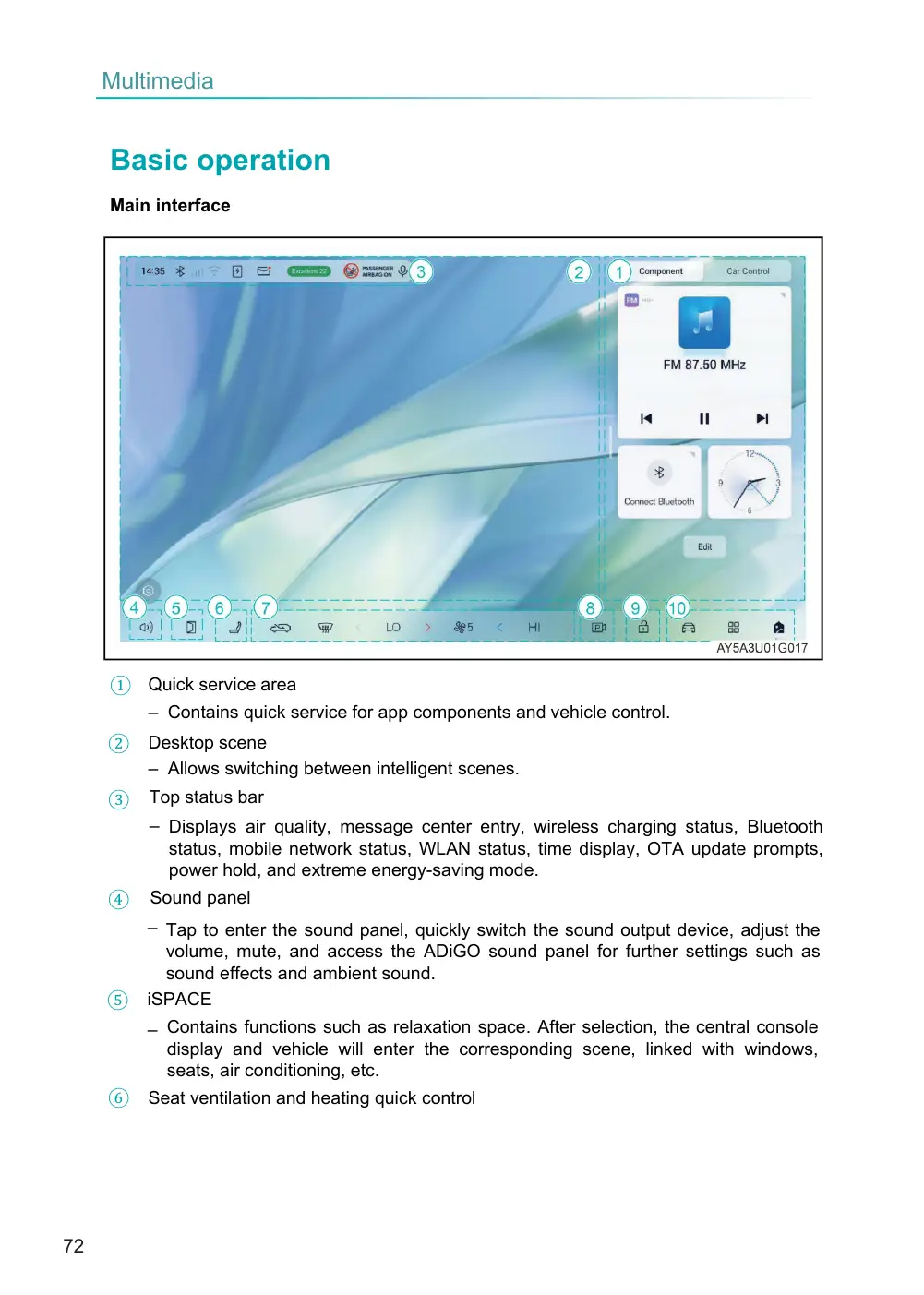
– Contains quick service for app components and vehicle control.
Desktop scene – Allows switching between intelligent scenes.
– Displays air quality, message center entry, wireless charging status, Bluetooth status, mobile network status, WLAN status, time display, OTA update prompts, power hold, and extreme energy-saving mode.
– Tap to enter the sound panel, quickly switch the sound output device, adjust the volume, mute, and access the ADiGO sound panel for further settings such as sound effects and ambient sound. iSPACE ⑤
– Contains functions such as relaxation space. After selection, the central console display and vehicle will enter the corresponding scene, linked with windows, seats, air conditioning, etc.
Basic operation
Main interface
① Quick service area
②
Top status bar
③
Sound panel
④
⑥ Seat ventilation and heating quick control
Page 73
– Tap to enter the seat ventilation and heating settings interface.
⑦ A/C information display/control area - Display the current A/C information. Tap to enter the A/C settings interface. Press and hold or drag the temperature or airflow numbers directly to bring up quick adjustment controls. Slide left or right to quickly adjust the air conditioning temperature or airflow.
◆ Due to different vehicle configurations, the main interface display may vary from the illustration. Refer to the actual vehicle for specifics.
⑧ Parking image control area
– Tap to enter the parking image interface.
⑨ Door lock control area
– Quick control for door locks.
⑩ System navigation bar
– System control soft keys.
NOTE:
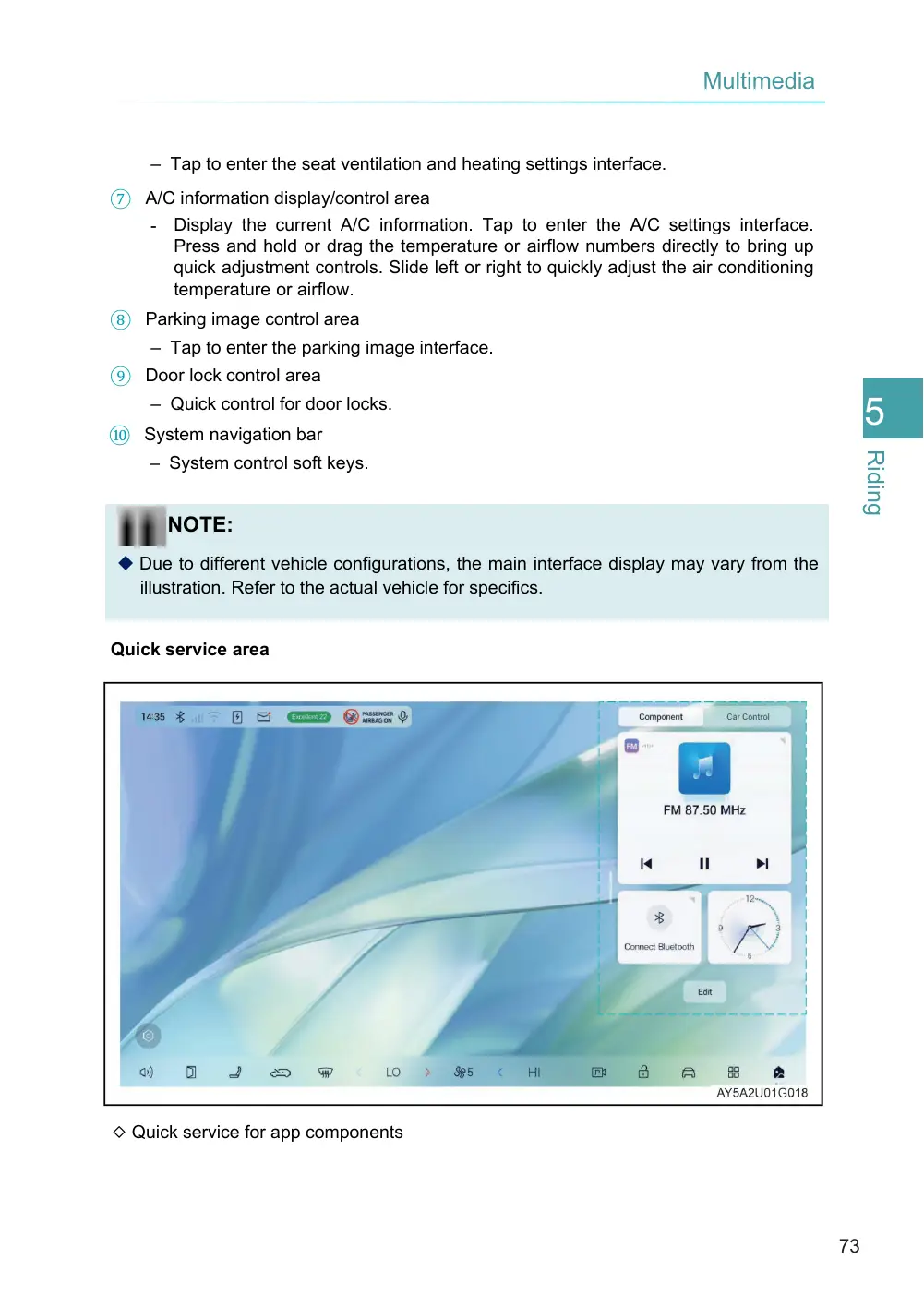
Quick service area
◇ Quick service for app components
Page 74
– Quick service for app components includes music, navigation, Bluetooth phone, clock, and the ability to customize app components.
– Use the vehicle control components to set related vehicle control functions.
◆ You can long press the title in the quick service area to drag and switch positions, or click the corresponding component name to switch the component display.
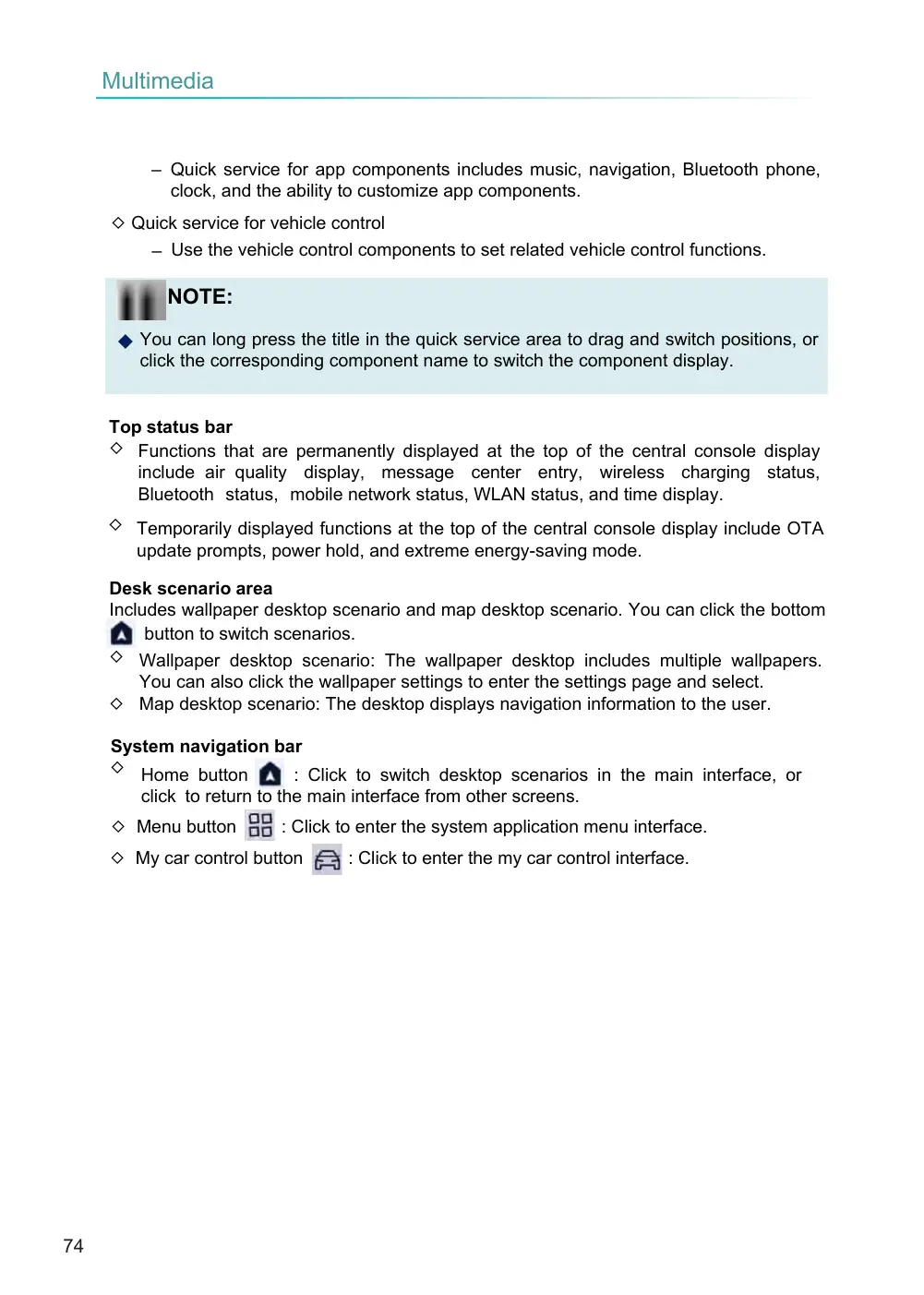
Top status bar ◇ Functions that are permanently displayed at the top of the central console display include air quality display, message center entry, wireless charging status, Bluetooth status, mobile network status, WLAN status, and time display.
◇ Temporarily displayed functions at the top of the central console display include OTA update prompts, power hold, and extreme energy-saving mode.
Desk scenario area Includes wallpaper desktop scenario and map desktop scenario. You can click the bottom button to switch scenarios. ◇ Wallpaper desktop scenario: The wallpaper desktop includes multiple wallpapers. You can also click the wallpaper settings to enter the settings page and select. ◇ Map desktop scenario: The desktop displays navigation information to the user.
System navigation bar ◇ Home button : Click to switch desktop scenarios in the main interface, or
click to return to the main interface from other screens.
: Click to enter the system application menu interface.
: Click to enter the my car control interface.
◇ Quick service for vehicle control
NOTE:
◇ Menu button
◇ My car control button
Page 75
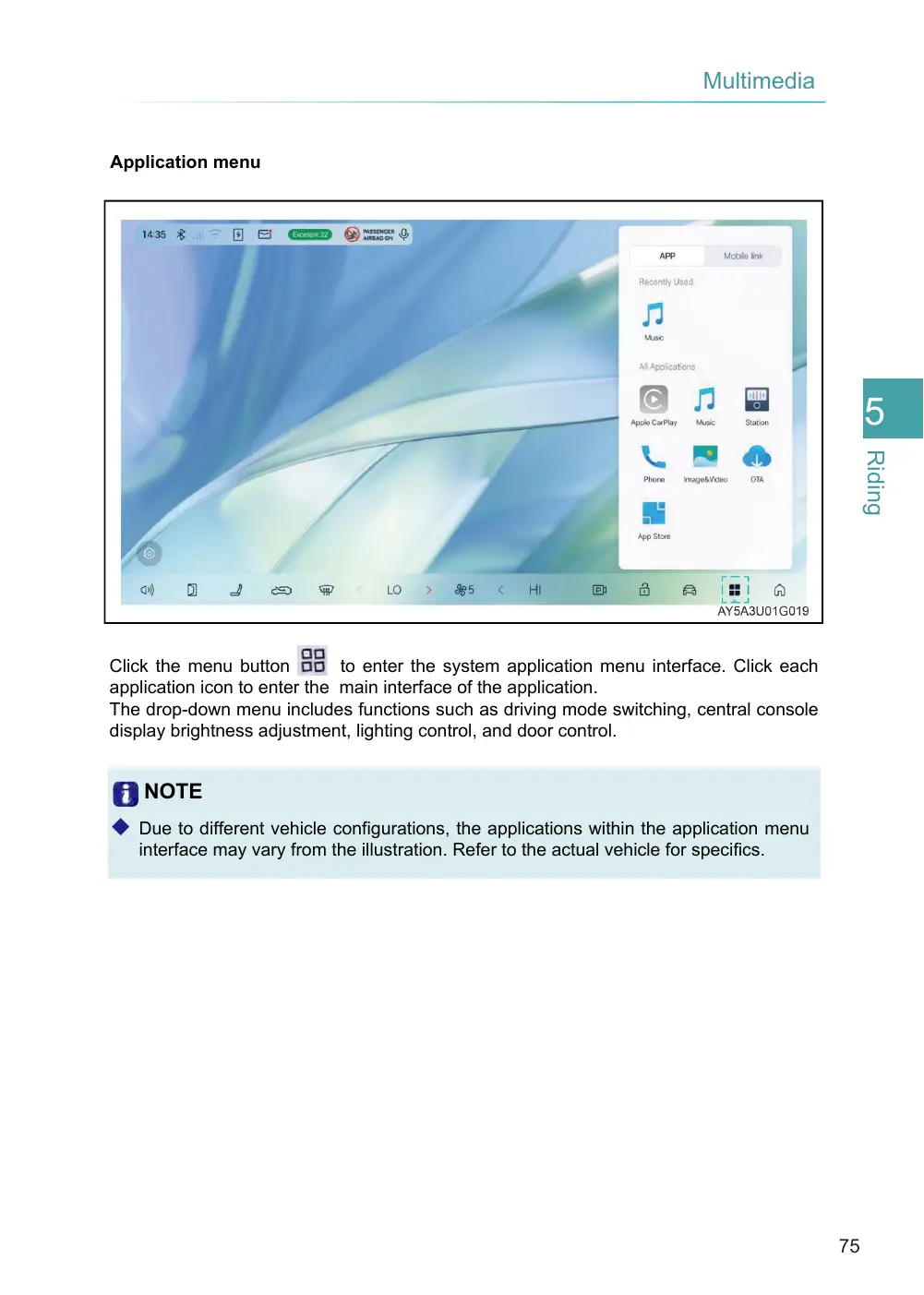
Click the menu button to enter the system application menu interface. Click each application icon to enter the main interface of the application. The drop-down menu includes functions such as driving mode switching, central console display brightness adjustment, lighting control, and door control.
◆ Due to different vehicle configurations, the applications within the application menu interface may vary from the illustration. Refer to the actual vehicle for specifics.
Application menu
NOTE
Page 76
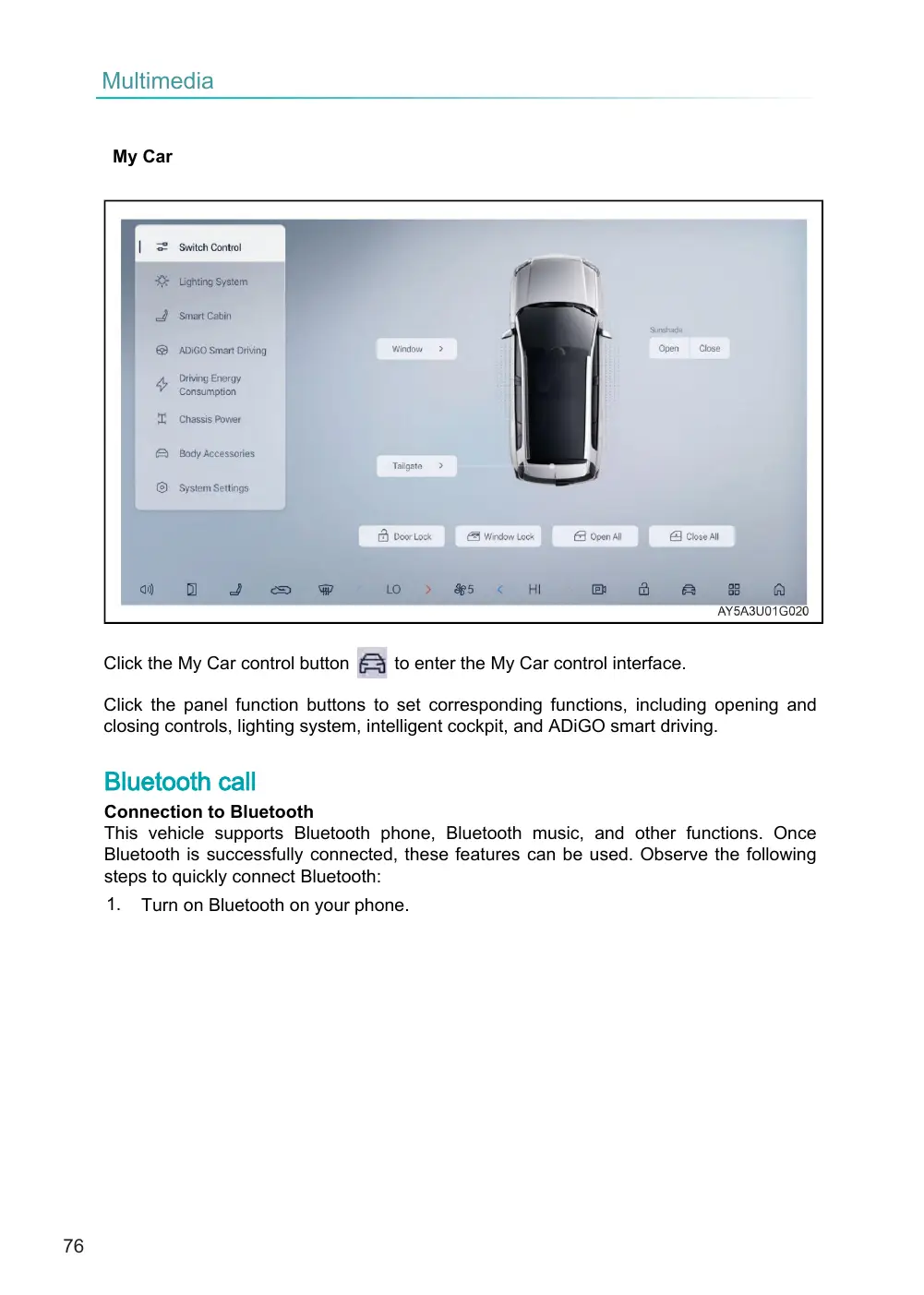
to enter the My Car control interface.
Click the panel function buttons to set corresponding functions, including opening and closing controls, lighting system, intelligent cockpit, and ADiGO smart driving.
Connection to Bluetooth This vehicle supports Bluetooth phone, Bluetooth music, and other functions. Once Bluetooth is successfully connected, these features can be used. Observe the following steps to quickly connect Bluetooth:
My Car
Click the My Car control button
Bluetooth call
1.
Turn on Bluetooth on your phone.